
Free · Offline · Windows & macOS
The preacher says the verse.
Biverse puts it on the screen.
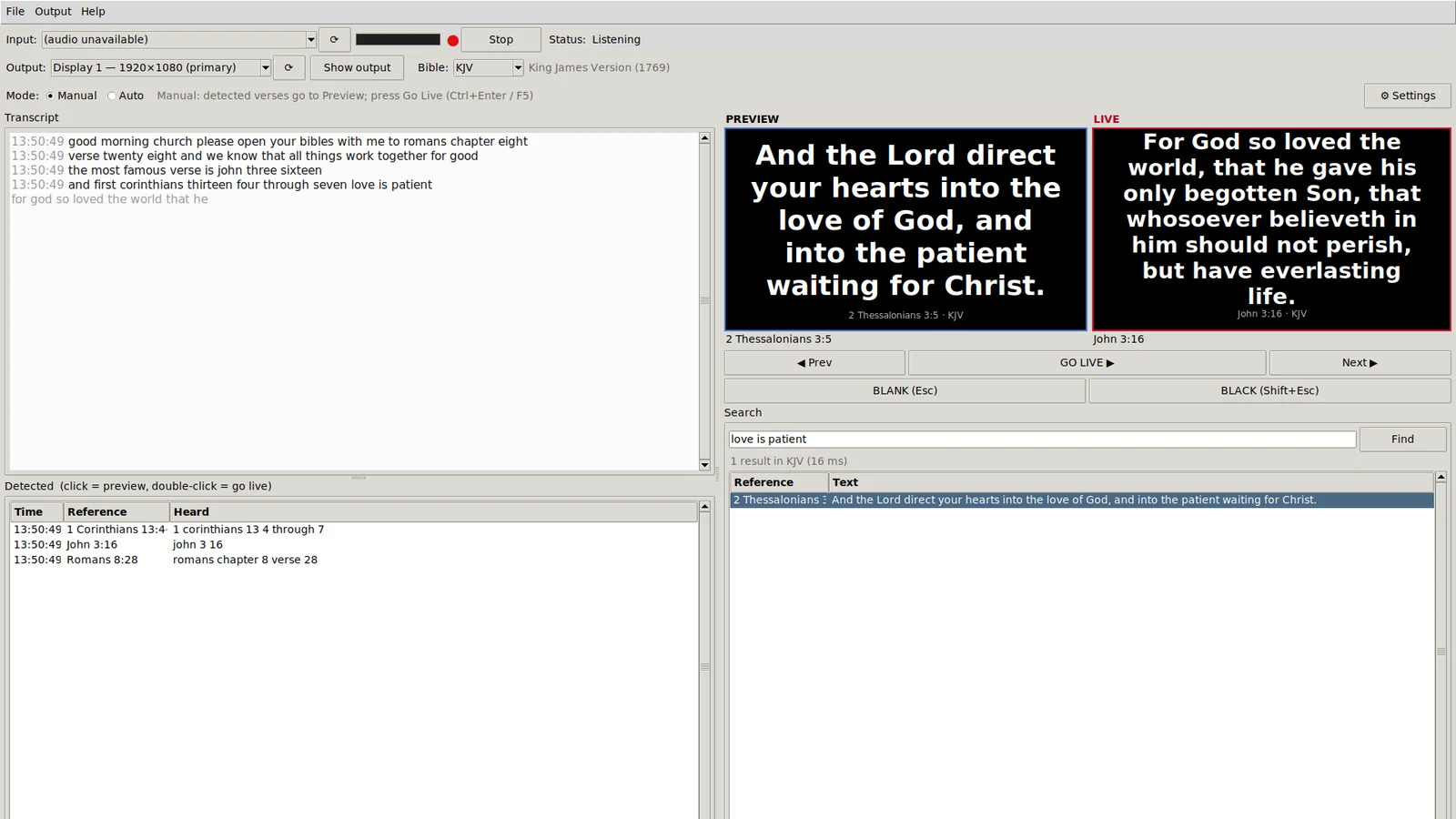
Biverse listens to the sermon, recognises Bible references as they are spoken and shows the verse full-screen on your projector or TV. It runs on the church computer, with no internet, account or subscription needed.
Version 1.7.0 · MIT licence · Windows 7 to 11, macOS 10.15+
“…so this morning, turn with me to John chapter three verse sixteen…”
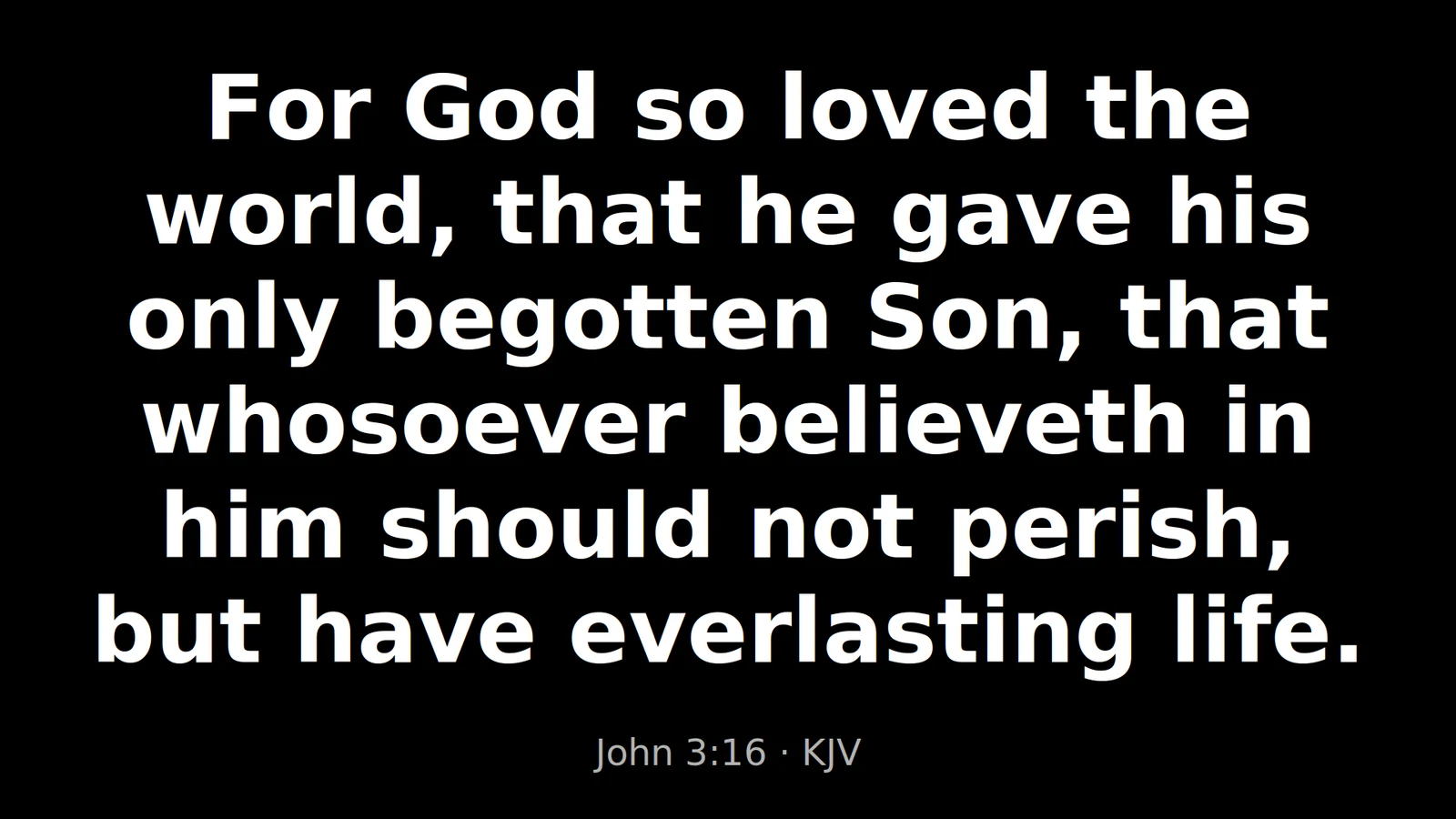
For God so loved the world, that he gave his only begotten Son, that whosoever believeth in him should not perish, but have everlasting life.
John 3:16 KJV
How it works
-
Listen
Connect any sound source: the laptop microphone, a USB mic, or a feed from the sound desk. A live meter shows Biverse can hear.
-
Recognise
Offline speech recognition picks out references like “second Timothy three sixteen” or “Psalm one nineteen, verse one hundred and five”. Words such as mark, job and acts are not mistaken for books.
-
Project
In Manual mode the verse waits in Preview until you press Go Live. In Auto mode it goes straight to the screen. Biverse follows the reading and moves to the next verse as the preacher finishes each one, and goes back if they stop to talk about the verse they just read.
Built for the media desk
- Any audio input
- Built-in or USB microphones, audio interfaces, mixer line-in, Stereo Mix, VB-Cable or BlackHole.
- Accurate with real accents
- Kroko is built in for live recognition. Parakeet, a one-click download in Settings, is far better with African and other accents.
- Voice navigation
- “Next verse”, “stop there”, “continue”, and “let’s read this in the ASV” all work hands-free.
- Quick search
- Start typing anywhere to jump to a passage: books are suggested as you type and the verse shows before it goes up.
1 cor 13 4-7and phrases likefor god so lovedwork too. - Verses quoted without a reference
- When the preacher quotes a verse without saying where it is, Biverse suggests it from the words. You check it and click to send it live.
- Models and updates in one click
- Settings → Models downloads a model with a progress bar and switches to it. Biverse also tells you when a new version is out and installs it when you restart.
- Sermon summary
- Every service gets a record: the scriptures read, key points and a timeline. You can also paste or import a transcript (text, SRT or WebVTT).
- Your translations
- KJV, WEB, ASV, YLT and BBE are included. Add online versions such as the NIV with a YouVersion app key, or import one your church is licensed for.
- A clean output screen
- Borderless on any monitor, with fonts, colours, a background image, Blank and Black, and bold or highlighted words. When nothing has been read for a while it can show a colour, a picture or a looping video instead.
Download
Choose the zip for your computer, unzip it and run Biverse. The installation guide walks volunteers through it step by step.
| Computer | File | Download |
|---|---|---|
| Windows 10 or 11, 64-bit | windows-x64 | Download |
| Windows 7 SP1, 8 or 8.1, 64-bit | windows-legacy-x64 | Download |
| Windows 7 or later, 32-bit | windows-legacy-x86 | Download |
| Mac with Apple Silicon, macOS 11+ | macos-arm | Download |
| Intel Mac, macOS 10.15+ | macos-intel | Download |
Optional packs
| Pack | Needs | Download |
|---|---|---|
| Parakeet speech model The most accurate recognition, best with accents. Also a download in Settings → Models | 64-bit, about 6 GB RAM | Download |
| AI sermon summary About 1.2 GB, see which computers below | 64-bit, about 8 GB RAM | Download |
The easiest way: open Settings → Models in Biverse and press Download. These zips are for
church computers without internet: copy one over and use Settings → Models → Install from a file…. Checksums are in
SHA256SUMS.txt on the release page.
On a Mac, right-click Biverse.app and choose Open the first time.
AI sermon summary
The built-in summary works on every computer. It lists the scriptures, picks the key sentences and builds a timeline. The optional AI pack goes further and writes a short summary in plain prose. It runs on the church computer and nothing is sent anywhere.
The AI pack is not included in the app download. Download it in Settings → Models, or as a zip below. Biverse checks the computer first: if it can’t run the AI summary, it says why instead of downloading or installing it.
| Download | AI summary with the pack |
|---|---|
windows-x64 | Yes Windows 10 and 11 |
windows-legacy-x64 | Windows 10 and 11 only not on Windows 7 or 8 |
windows-legacy-x86 | No 32-bit |
macos-arm | Yes macOS 13.3+ recommended |
macos-intel | Yes macOS 13.3+ recommended |
| Linux x64, from source | Yes |
Questions
Does Biverse need the internet?
No. Speech recognition, the five included Bibles and the AI summary all run on the computer, so a service never needs the internet. Biverse goes online only when you press Download for an optional model, when you use an online Bible version, and to check for a new version about twice a day (never while it is listening; turn it off in Settings → Updates). The update check reads one small file from GitHub and sends nothing about you. There is no account and no telemetry.
Will it run on our old church laptop?
Most likely. There are builds for Windows 7 SP1 and later, including 32-bit netbooks, and for Macs from
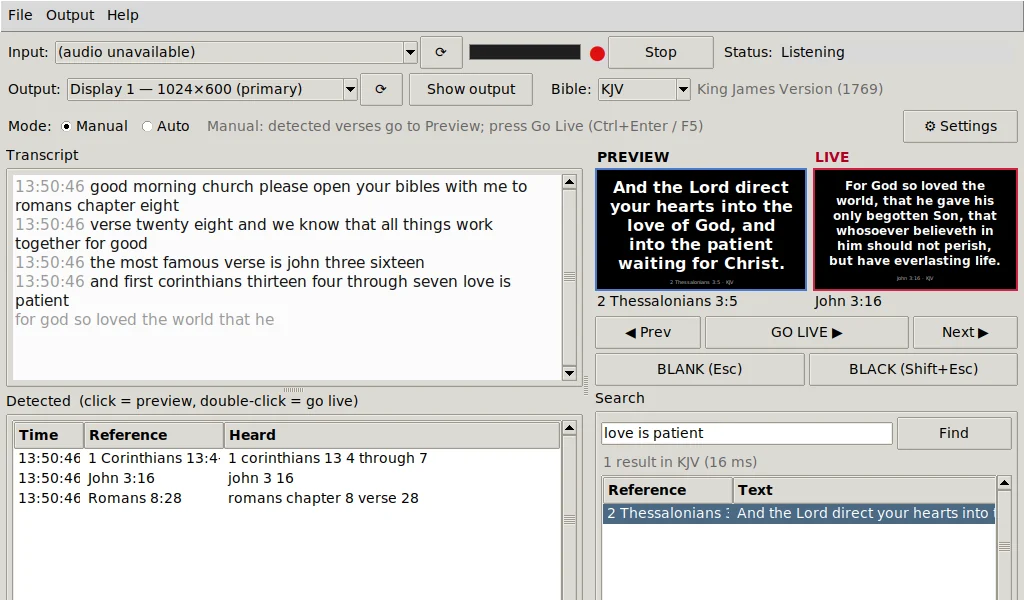
macOS 10.15. The window fits a 1024×600 screen. Windows 7 needs update KB2999226. A video on the idle
screen needs the windows-x64 download or a Mac with macOS 11 (Intel) or 14 (Apple Silicon),
and takes real processor time, so try it before a service; a picture works everywhere.
Can we use the NIV, NKJV or ESV?
These translations are copyrighted, so they can’t be included, but there are two ways to use them.
Enter a YouVersion Platform app key in Settings → Bibles, and the versions your key allows (such as the
NIV, NASB or AMP) join the Bible list. They need the internet: their text is fetched a chapter at a
time and never saved, and if the connection drops the slide shows the KJV (or the version you choose),
labelled as such, until it comes back. Or, if your church holds a licence, import the text with
--import-translation; the
guide explains how.
What if it shows the wrong verse?
Use Manual mode. Detected verses wait in Preview, and nothing reaches the screen until you press Go Live.
Is it really free?
Yes. Biverse’s own code is open source under the MIT licence, and the included Bible texts are public
domain. The windows-x64 and Mac downloads also contain video libraries (FFmpeg) under the GNU
GPL, which is free software too. The
third-party notices list
every component and where to get its source.